WordPress pages are made up of blocks. A block might contain a heading, paragraph, image, button or other content.
You can select, move and duplicate individual blocks using the controls that appear when you edit a page.
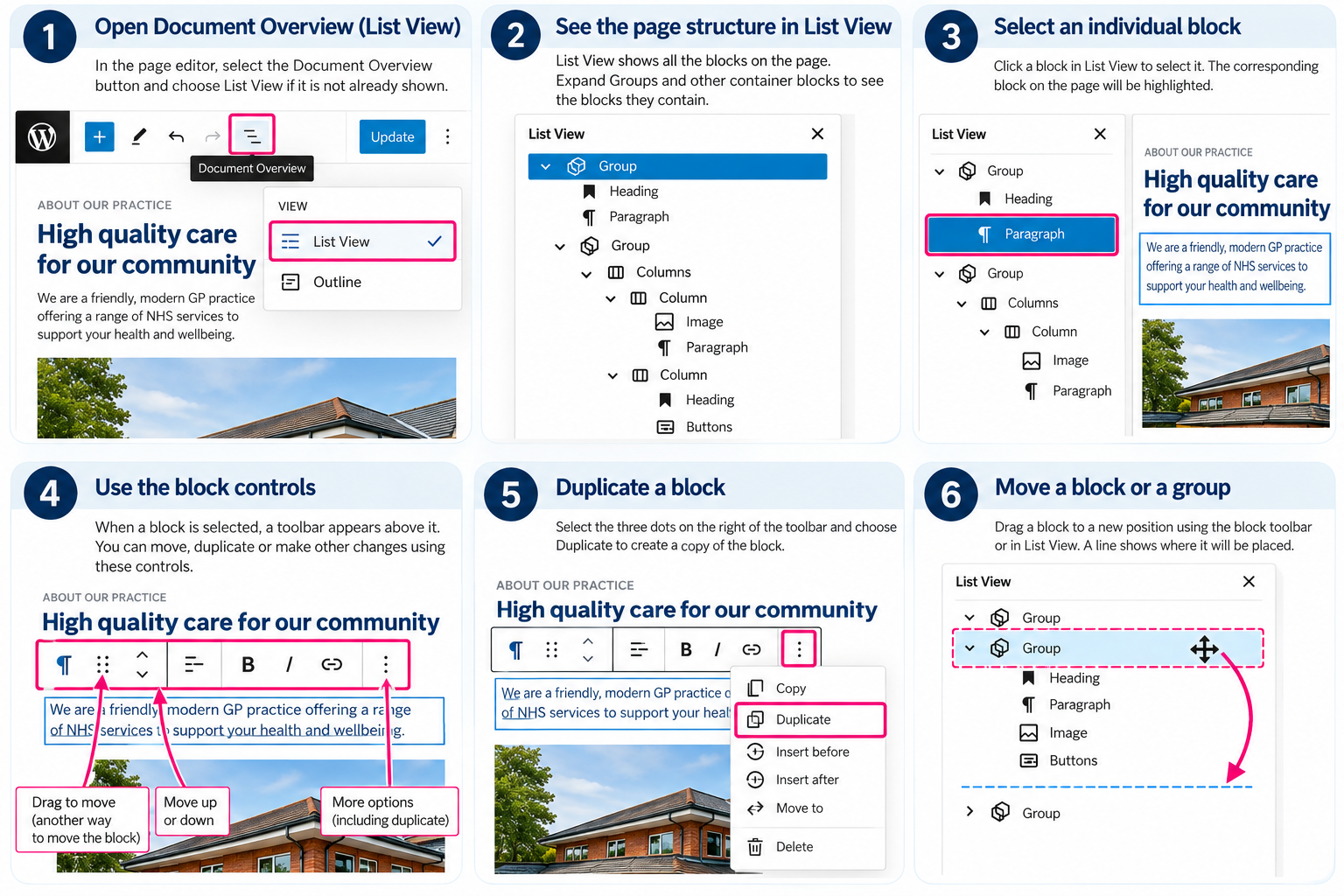
For more complicated pages, Document Overview and List View provide a useful way to see how the whole page is structured. This is particularly helpful when blocks are contained inside Groups, Columns or other blocks.
Selecting a block
Select the content you want to work with in the page editor.
When a block is selected, a toolbar appears above it. The options available depend on the type of block you have selected.
You can use this toolbar to edit the block and, in most cases, move or duplicate it.
Moving a block using the block controls
For a simple change, you can move a block directly from its toolbar.
After selecting the block, look for the Move up and Move down controls.
Select the appropriate control to move the block one position at a time.
You can also use the drag handle in the block toolbar to drag the block to another position on the page.
Moving a block this way is useful when you only need to make a small change to the order of the content.
Duplicating a block
Duplicating an existing block can be quicker than creating a new one, particularly when you want to create another block with similar content or formatting.
Select the block you want to duplicate.
Select the three dots at the right of the block toolbar to open the additional options.
Select Duplicate.
WordPress will create a copy of the block.
You can then edit the duplicated block with your new content.
This can also be used with a Group block. Duplicating a Group creates a copy of the Group and the blocks contained within it, which can be useful when creating another section with the same layout.
Remember to change all the relevant content in the duplicated block or Group before updating the page.
Using Document Overview and List View
When a page contains several sections or blocks nested inside other blocks, it can sometimes be difficult to select or move the correct block directly on the page.
In these situations, use Document Overview.
Select the Document Overview button in the toolbar at the top of the page editor.
Select List View if it is not already displayed.
List View shows the blocks on your page as a structured list.
You may see blocks such as:
Group
Columns
Column
Heading
Paragraph
Image
Buttons
The order and indentation shown in List View help you understand how the page has been constructed.
Understanding blocks inside other blocks
Some blocks act as containers and hold other blocks inside them.
For example, a page might contain a Group structured like this:
Group
Heading
Paragraph
Group
Heading
Paragraph
Button
Image
These are known as nested blocks.
Select the arrow beside a Group, Column or other container block in List View to expand it and see the blocks it contains.
A block that is indented underneath another block is contained within that block.
This makes List View particularly useful for understanding more complicated page layouts.
Selecting an individual block using List View
If you are having difficulty selecting the correct content directly on the page, find it in List View instead.
Expand any Groups, Columns or other container blocks until you can see the individual block you need.
Select the block in List View and WordPress will select the corresponding block on the page.
You can then edit it normally.
This is often much easier than repeatedly clicking on the page trying to select a block that is nested inside other blocks.
Moving blocks using List View
List View is also useful when you need to move content over a greater distance or rearrange a more complicated page.
Select the block you want to move and drag it up or down the list.
A line will appear to indicate where WordPress will place the block.
Release the block when the line is in the correct position.
Pay particular attention to the indentation when moving blocks around Groups, Columns and other container blocks.
If a block is indented underneath a Group, it is contained within that Group. If it lines up with the Group itself, it is outside the Group.
This is important because accidentally moving a block into or out of a Group can affect the layout of the page.
Moving a whole Group
If several blocks belong together, it is usually better to move their Group rather than moving each block individually.
For example, a Group might contain:
a heading;
introductory text;
an image; and
a button.
Selecting and moving the Group moves all of these blocks together and helps preserve the existing layout.
You can select the Group either directly on the page or from List View.
Which method should I use?
For straightforward changes, use the controls that appear above the selected block. They are usually the quickest way to:
move a block slightly up or down;
drag a block to another nearby position; or
duplicate an existing block or Group.
Use Document Overview → List View when:
you cannot easily select the block you need;
the page contains Groups, Columns or nested blocks;
you want to understand how a section of the page is constructed;
you need to move a block over a greater distance; or
you want to move an entire Group of content.
Before updating the page
Before selecting Update, check that:
the content is in the intended order;
duplicated content has been changed as required;
headings, paragraphs and other blocks have not accidentally moved into the wrong Group or Column;
Groups still contain the correct blocks; and
the page looks as expected.
If you are unsure about changing the main structure or layout of a page, please contact GenPra for assistance.
A useful tip
You do not need to understand everything about how a complicated page was built to make routine content changes.
If you are struggling to select something, open Document Overview → List View, expand the Groups or other container blocks and find the individual block you want to edit.
For many routine changes, this is the quickest way to find exactly the right content without disturbing the rest of the page.
Was this article helpful?
That’s Great!
Thank you for your feedback
Sorry! We couldn't be helpful
Thank you for your feedback
Feedback sent
We appreciate your effort and will try to fix the article