To display your practice boundary and postcode chedker on your website, we require a boundary file in GeoJSON format. You can create this yourself using the free online mapping tool geojson.io.
The process normally takes around 10–20 minutes.
Step 1 – Open geojson.io
Visit:
The map will open automatically.
Step 2 – Find Your Practice
Use the search box in the top-left corner to search for your practice or postcode.
Zoom in until you can clearly see the roads that form your practice boundary.
Step 3 – Select the Polygon Tool
Click the Polygon tool in the toolbar at the top left of the map.
This allows you to draw your practice boundary.
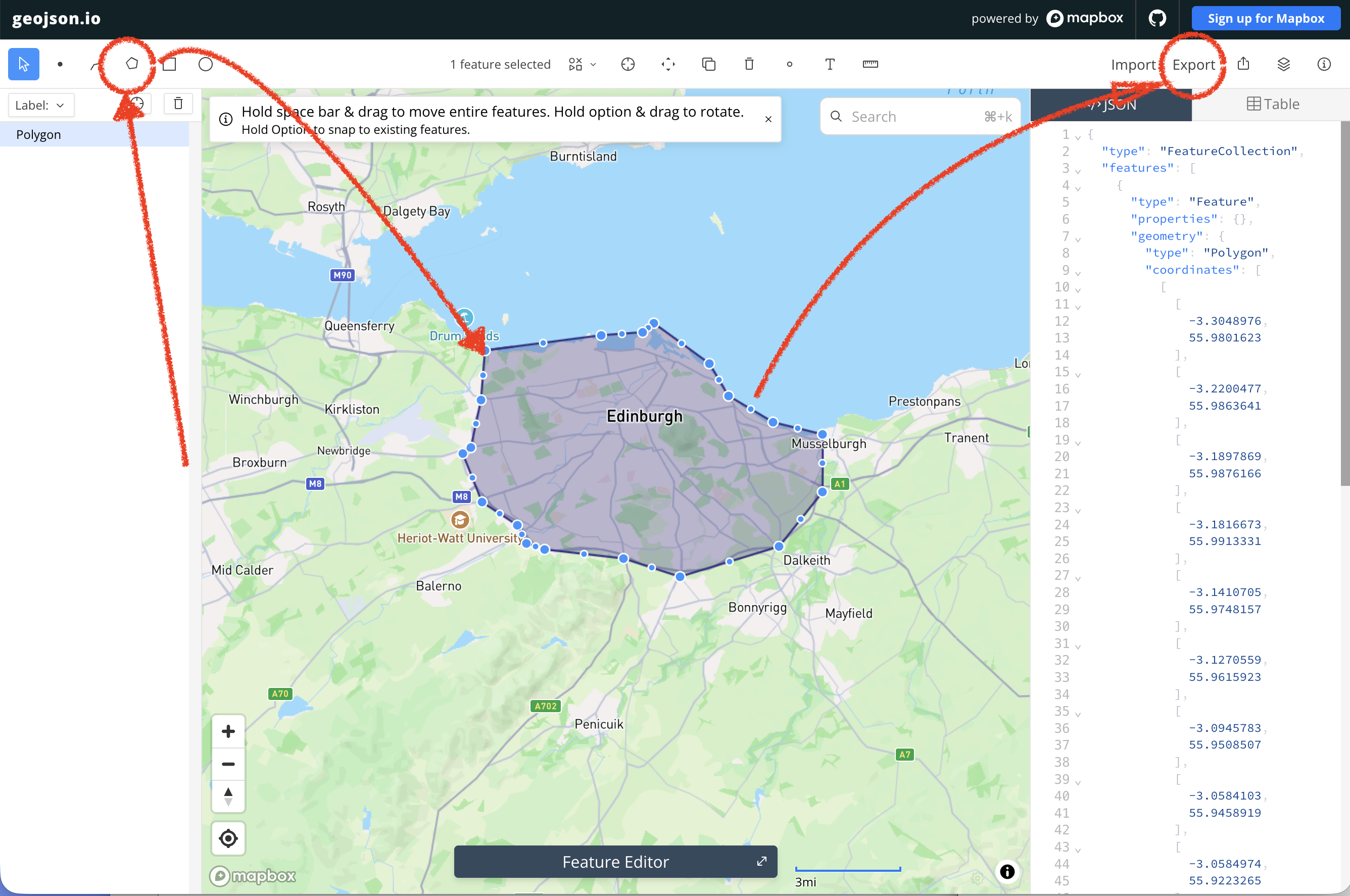
Step 4 – Draw the Boundary
Starting at any point on the boundary:
- Click once to place your first point.
- Continue clicking around the outside of your practice boundary.
- Add points wherever the boundary changes direction.
- You do not need to click every few metres—a point every road junction or bend is usually sufficient.
- Continue until you return to your starting point.
To finish the polygon, click the first point again.
The completed area will be shaded.
Tips
- Follow roads, rivers, railway lines and other clear features where possible.
- If the boundary follows a curved road, add a few extra points to keep the shape accurate.
- Zoom in when drawing for greater accuracy.
- If you make a mistake, press Delete or undo the last point and try again.
Step 5 – Check the Boundary
Before saving, ensure that:
- The entire practice area is included.
- The shaded area matches your published practice boundary.
Step 6 – Save the File
From the menu select:
Export → GeoJSON
The default settings are preselected and no additions or advanced options are needed.
Save the file using your practice name, for example:
- Greenfield-Medical-Centre.geojson
- High-Street-Surgery.geojson
Step 7 – Send the File to GenPra
Email the saved .geojson file to GenPra at support@genpra.com.
We will upload it to your website and configure your practice boundary checker.
Was this article helpful?
That’s Great!
Thank you for your feedback
Sorry! We couldn't be helpful
Thank you for your feedback
Feedback sent
We appreciate your effort and will try to fix the article